YouTube Podcast Setup for Business Owners: 9 Steps and Specs
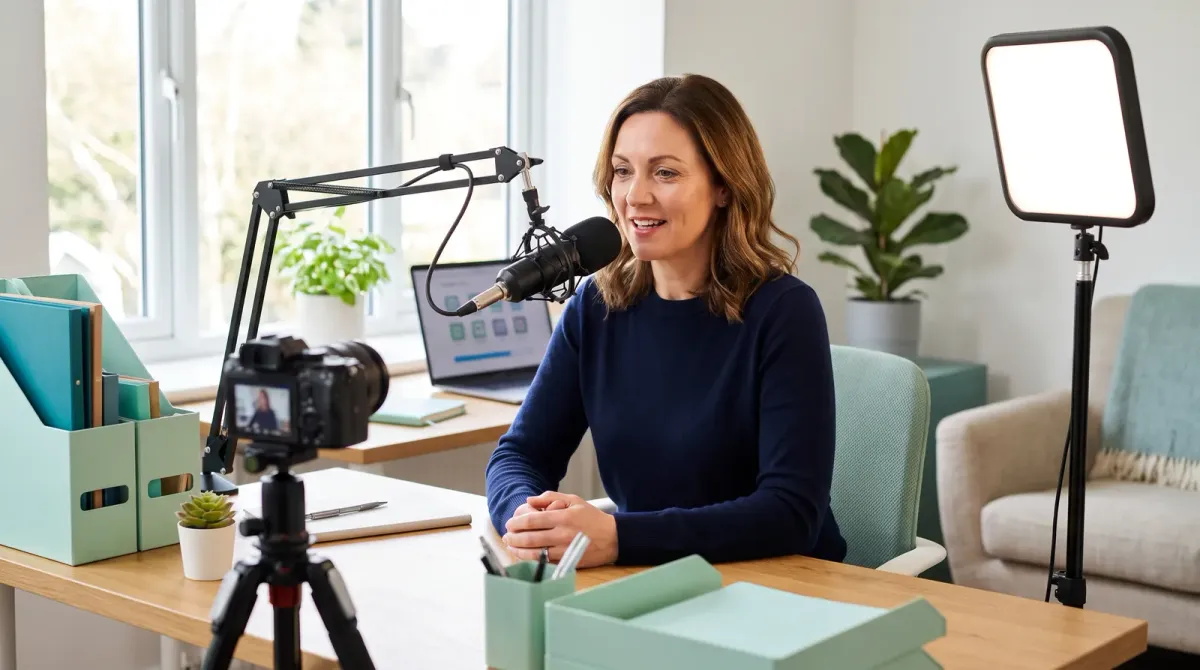
A YouTube podcast setup in 9 steps for coaches and experts: RSS feed or full video, YouTube's official specs, and a per-episode upload checklist to reuse.
Most business owners who host a podcast know their show should be on YouTube, and most of them put off the YouTube podcast setup because it looks like a second production job. The settings live in different parts of YouTube Studio, the requirements change from year to year, and it is hard to tell which steps matter for an audio show and which only apply to video.
The work is smaller than it looks once you pick one of two paths. An audio-first show can connect its RSS feed and let YouTube build and upload each episode. A show recorded on camera can upload full video episodes into a podcast created in YouTube Studio. Both paths use the same show setup, and both benefit from the same habits after launch.
This guide walks through the full setup in nine steps, with YouTube’s current specs from its own help center, a decision path for choosing your route, an equipment list for video, export settings, and a checklist to repeat for every episode. Our team has produced more than 5,000 episodes for coaches, consultants, authors, and experts, and this is the process we follow when we put a client’s show on YouTube.
What a YouTube podcast is
On YouTube, a podcast is a playlist, and each episode is a video in that playlist. Marking a playlist as a podcast makes the show easier to find, which our piece on YouTube discoverability covers for business shows. When you mark a playlist as a podcast, YouTube can show it with a podcast badge, recommend it to listeners with similar interests, feature it on its podcasts page, and include it in YouTube Music, where most podcast content can play in the background. These details come from YouTube’s guide to creating a podcast in YouTube Studio, which also says the playlist should hold only full-length episodes, in the order they should be played, with every season in one podcast.
The audience is large and it overlaps with the people who already listen to your audio feed. YouTube announced more than 1 billion monthly viewers of podcast content as of January 2025, and says it is now the most frequently used service for listening to podcasts in the United States. Edison Research’s Infinite Dial 2026 adds two figures that matter for planning:
1B+
monthly active viewers of podcast content on YouTube, as of January 2025
84%
of Americans aged 12 and older use YouTube every month
57%
of Americans aged 12 and older have both listened to and watched a podcast
For a coach, consultant, or author, the practical point is that prospects who would never open a podcast app still search YouTube for answers. A show that is set up properly there can be found by those people with no extra recording.
Two ways to set up a YouTube podcast
Every YouTube podcast setup starts with one decision: whether YouTube builds your episodes from your audio feed or you upload finished videos. The table compares the two paths, and the decision path below it shows which one to start with.
| Path A: connect your RSS feed | Path B: upload full video | |
|---|---|---|
| What viewers see | A static image of your show art over your audio | You and your guests on camera |
| How episodes arrive | New feed episodes upload to your channel automatically | You or your team upload each episode |
| Recording setup | Your current audio setup | Camera, microphone, and light |
| Extra work per episode | None beyond the audio edit | Video edit, thumbnail, title, description, and chapters |
| Channel access needed | Advanced features and a supported country | Phone verification for long episodes and custom thumbnails |
| Back catalog | Upload all episodes, those since a chosen date, or only future ones | Upload new videos or add existing ones |
| Best for | Audio-first shows that want a YouTube presence now | Interview shows and experts who teach on camera |
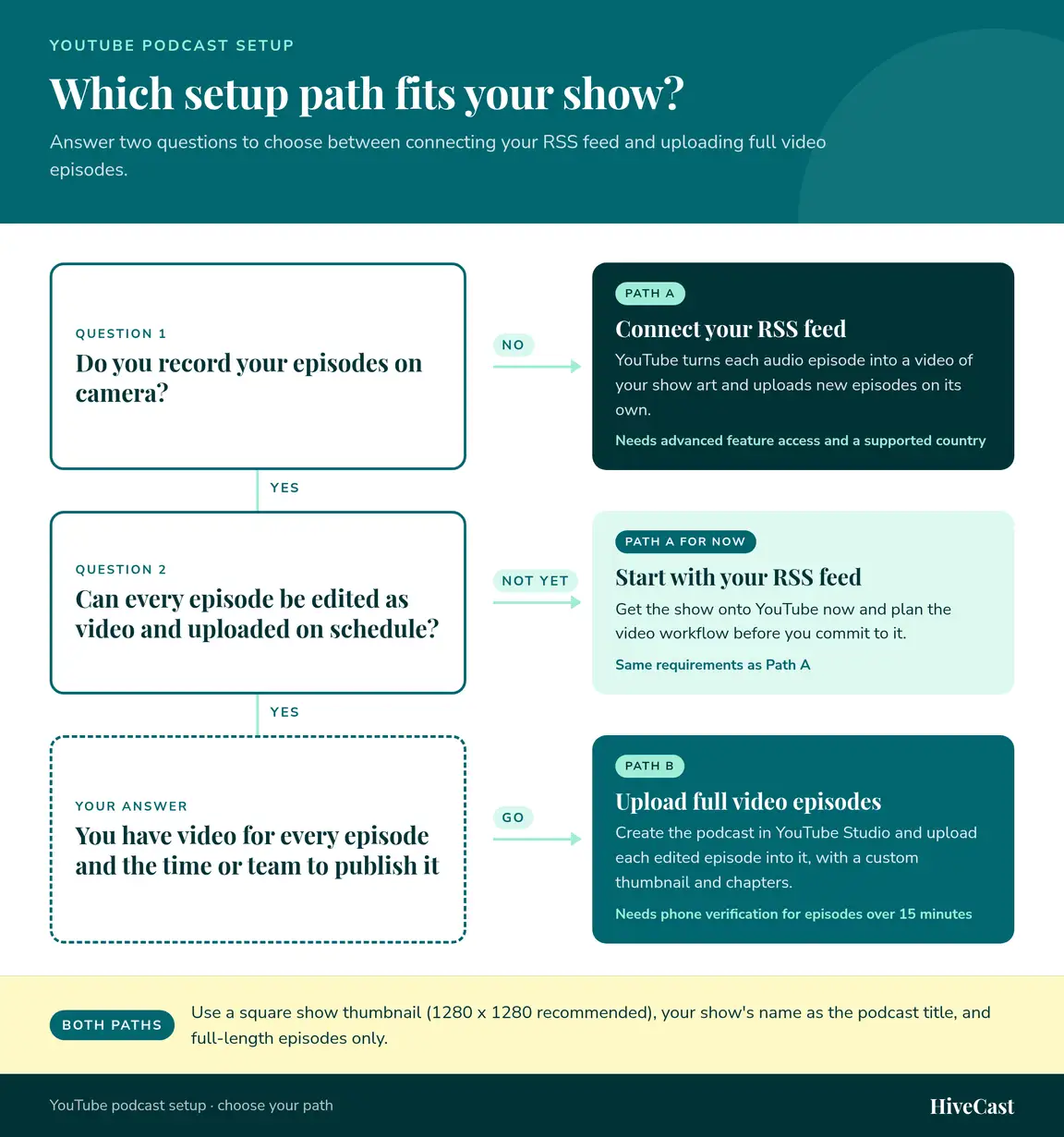
If you do not record on camera, Path A is the obvious start. If you record on camera but cannot yet edit and publish video for every episode on schedule, start with Path A as well and plan the video workflow before you commit to it. Choose Path B once every episode has video and someone has the time to finish it.
YouTube podcast requirements and specs
YouTube’s requirements fall into two groups: what the show and its files must look like, and what your channel has to be allowed to do. Both are covered here so you can check them before you start.
File and artwork specs
The table lists the current specs from YouTube Help for each part of a YouTube podcast. Where YouTube gives a recommendation rather than a hard limit, the table says so.
| Item | YouTube’s spec | Applies to |
|---|---|---|
| Show thumbnail | Square (1:1), 1280 x 1280 pixels recommended | Both paths |
| Show title | Your show’s name, without extra words such as “podcast” | Both paths |
| Episode thumbnail | 16:9, 3840 x 2160 recommended, at least 640 pixels wide, JPG or PNG, up to 50 MB from a computer | Video path |
| Shorts thumbnail | 9:16, added in YouTube Studio on a computer | Shorts |
| Episode length | 15 minutes until you verify, then up to 12 hours or 256 GB | Video path |
| Chapters | First timestamp 00:00, at least three in ascending order, each at least 10 seconds | Video path |
| Shorts | Vertical, up to 3 minutes, maximum 1080p | Both paths |
| Feed text | No HTML or characters such as ”<” and ”>” in titles or descriptions | RSS path |
| Sponsorships | Declare host-read promotions and sponsorships as branded content | RSS path |
The thumbnail figures come from YouTube’s page on custom thumbnails, which also notes a 2 MB limit for video thumbnails uploaded from a phone.
Channel feature access
YouTube unlocks features in three tiers. Standard features come with any channel, intermediate features need phone verification, and advanced features come with enough channel history or with ID or video verification. YouTube’s page on feature access lists them, and the ones that matter for a podcast are below.
| Feature | What unlocks it |
|---|---|
| Create a podcast in YouTube Studio | Phone verification |
| Upload episodes longer than 15 minutes | Phone verification |
| Custom thumbnails | Phone verification |
| Chapters | Advanced features |
| RSS delivery | Advanced features |
| Clickable links in long-form descriptions | Advanced features |
You can see what your channel has today in YouTube Studio under Settings, then Channel, then Feature eligibility.
The 9-step YouTube podcast setup
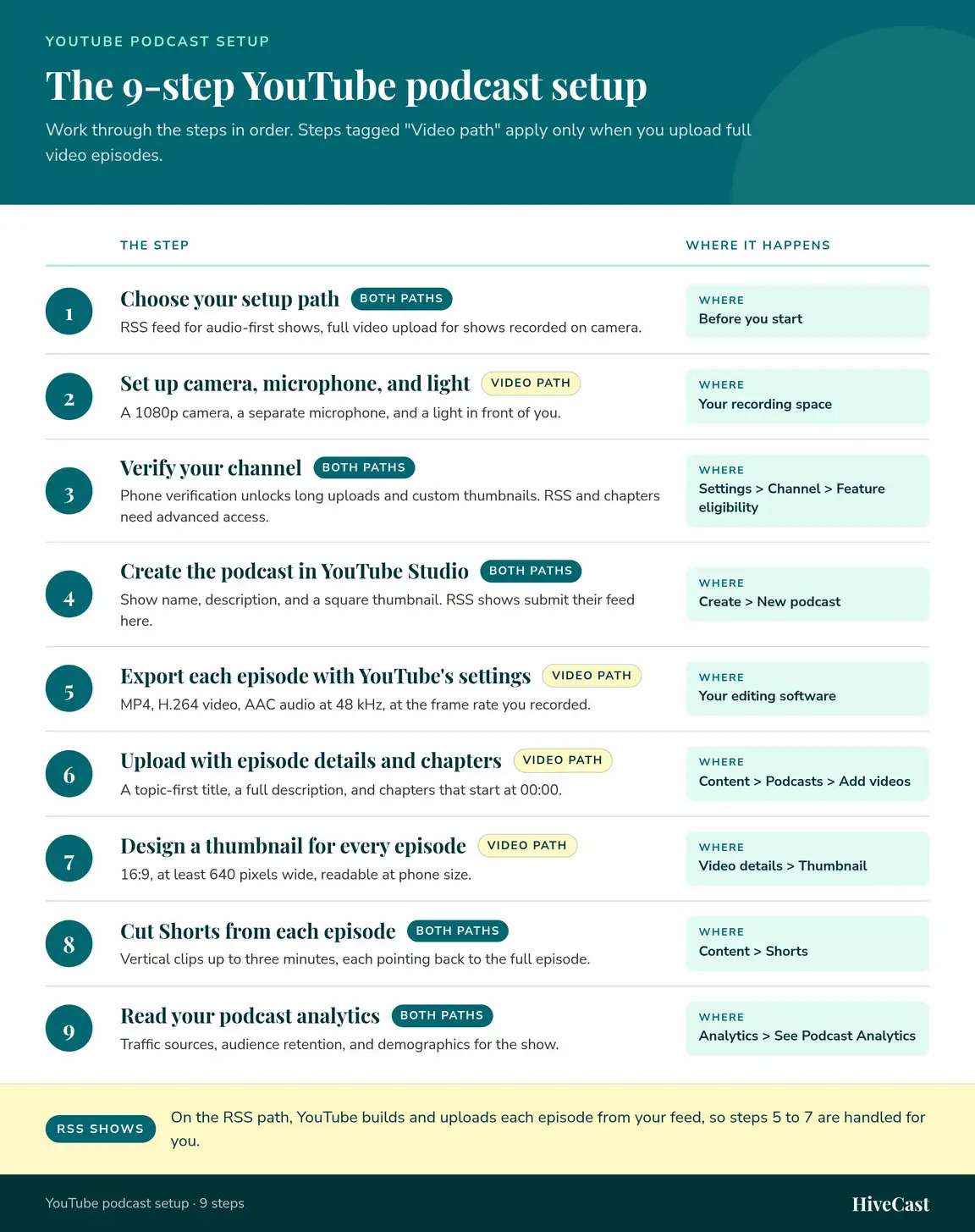
The steps below run in order, and each one prepares something the next step needs. Steps 2, 5, 6, and 7 apply only to the video path, because on the RSS path YouTube builds and uploads the episodes for you.
Step 1: Choose your setup path
Use the decision path above. If you are unsure, start with the RSS path, because it gets your back catalog onto YouTube with no change to how you record. Before you commit to it, confirm that your channel’s location is on YouTube’s list of countries where RSS delivery is available, which includes the United States, the United Kingdom, Canada, and Australia.
💡 Start with RSS
Start with the RSS path if you are unsure. It gets your back catalog onto YouTube with no change to how you record, and you can add video episodes later.
Step 2: Set up your camera, microphone, and light
A good video podcast setup does not need a studio. It needs four things done well, and most of our video clients record in a home office with a webcam or a single mirrorless camera.
| Item | What to look for | Common mistake |
|---|---|---|
| Camera | Records 1080p or better, set at eye level, framed from mid-chest up | A laptop camera looking up at you |
| Microphone | A separate microphone close to your mouth, not the one built into the camera | Relying on the camera or laptop microphone |
| Light | One soft light in front of you, slightly to one side | A bright window behind you |
| Remote guests | A remote recording platform that captures each person’s audio and video locally as separate tracks | Recording through meeting software, which compresses both |
Audio quality matters more than picture quality, because viewers forgive a soft image sooner than muffled sound. Our guide to remote recording quality covers the setup for guests who join from their own offices.
Before every recording
- Camera at eye level and recording in 1080p or higher
- Light in front of you, no window behind you
- Microphone checked with a 30-second test recording
- Guest’s camera, microphone, and local recording confirmed
Step 3: Verify your channel
Verify your channel before you create the podcast, because an unverified channel cannot upload anything longer than 15 minutes.
- On a computer, go to youtube.com/verify and confirm your phone number by text message or voice call.
- In YouTube Studio, open Settings, then Channel, then Feature eligibility, and check that intermediate features show as enabled.
- If you plan to use RSS delivery or chapters, check whether advanced features are enabled. If they are not, you can verify with an ID or a short video, or wait until your channel builds enough history.
Step 4: Create the podcast in YouTube Studio
Both paths start from the same button in YouTube Studio: Create, then New podcast. What you do next depends on your path.
For the video path:
- Click Create, then New podcast, then Create a new podcast. If you already have a playlist of full episodes, choose Set an existing playlist as a podcast instead.
- Enter the podcast title, using your show’s name exactly. YouTube asks you not to add words such as “podcast” unless they are part of the name, and it replaces vague titles with your channel name in YouTube Music.
- Write a detailed description that names the topics you cover and who the show is for.
- Upload the square thumbnail at 1280 x 1280 pixels, set visibility, and click Create.
- In the podcast details, set the default video order: newest first for an episodic show, oldest first for a serial show.
For the RSS path, YouTube’s help article on RSS delivery gives the full procedure:
- Click Create, then New podcast, then Submit RSS feed, and accept the RSS ingestion terms.
- Enter your feed URL, click Send code, and enter the code sent to the email address listed in your feed. If you do not know that address, your hosting provider can tell you.
- Choose which episodes to upload: all existing episodes, episodes published since a specific date, or only future episodes. If most episodes include sponsorships or host-read promotions, tick the branded content option.
- Review visibility and click Save. Episodes upload as private videos, which can take a few days.
- When YouTube emails you that the podcast is ready, go to Content, then Podcasts, and click Publish.
RSS path: three rules to know
- Edit episode details in your feed, not in YouTube Studio. A change made in Studio blocks later updates to that episode from your feed.
- Replacing an audio file in your feed does not update YouTube. Use Re-upload from RSS feed on that episode instead.
- Back catalog episodes do not trigger notifications to subscribers, but new episodes do.
These rules come from YouTube’s overview of RSS podcasts, which is worth reading once before you connect a feed.
Step 5: Export each episode with YouTube’s settings
For video episodes, export from your editing software with YouTube’s recommended encoding settings. Files that match them process faster and look the way they did in your editor.
| Setting | Recommended value |
|---|---|
| Container | MP4, with the moov atom at the front of the file |
| Video codec | H.264, progressive scan, High Profile |
| Frame rate | The same frame rate you recorded at |
| Bitrate at 1080p | 8 Mbps at 24, 25, or 30 fps, or 12 Mbps at 48, 50, or 60 fps |
| Audio codec | AAC-LC, stereo, 48 kHz |
| Audio bitrate | 384 kbps for stereo |
If your camera records interlaced video, deinterlace it before export. YouTube’s example is converting 1080i60 footage to 1080p30.
ℹ️ Good to know
If your camera records interlaced video, deinterlace it before export. YouTube’s own example is converting 1080i60 footage to 1080p30.
Step 6: Upload with episode details and chapters
Upload each episode from Content, then Podcasts, then Add videos, so it lands inside the podcast rather than in your general uploads. Then fill in three fields with care.
- Title. Lead with the topic or question the episode answers, then add the guest’s name if it helps. YouTube’s own example layout puts the episode name first and the show name after it, optionally.
- Description. Put the most useful summary at the top, where viewers read first, then add links, the guest’s details, and chapters. Writing YouTube descriptions is a different job from writing show notes, and our comparison explains where they differ.
- Chapters. Add timestamps to the description. YouTube’s rules for video chapters are that the first timestamp is 00:00, there are at least three in ascending order, and each chapter runs at least 10 seconds.
A chapter list for a 40-minute interview looks like this:
00:00 Why most discovery calls stall
02:40 The three questions our guest asks first
11:15 Pricing a high-ticket offer on the call
24:30 Following up without chasing
36:10 Where to find our guest
Set visibility to match your release date, so the YouTube episode goes live alongside the audio version.
Step 7: Design a thumbnail for every episode
The thumbnail decides whether a viewer clicks, so treat it as its own piece of work rather than a template with the title swapped out. Use a 16:9 image, ideally 3840 x 2160 pixels and at least 640 pixels wide, and check that the text is readable at phone size. Show a face where you can, keep to four or five words, and use the same layout and colors across episodes so returning viewers recognize the show.
The thumbnail decides whether a viewer clicks, so treat it as its own piece of work rather than a template with the title swapped out.
Keep the square 1280 x 1280 show thumbnail separate. It represents the whole podcast in places such as YouTube Music, and a 16:9 image cropped to a square usually cuts off the text.
Step 8: Cut Shorts from each episode
Shorts bring people to the show who were not looking for a podcast. Cut two or three vertical clips from each episode, each built around one answer or idea, and keep them well under YouTube’s three-minute limit for Shorts. Link each Short to the full episode using the related video option, which needs intermediate feature access.
Keep Shorts out of the podcast playlist. YouTube asks that the podcast hold only full episodes, and Shorts made to support a podcast do not appear in YouTube Music. Our guide to podcast clips covers how to find the moments worth cutting and how to format them.
Step 9: Read your podcast analytics
YouTube gives each podcast its own analytics view. In YouTube Studio, open Analytics, then Overview, and select your show from the Your Podcasts card for a quick view of views and watch time. Click See Podcast Analytics for the full report.
| Question | Where to look | What to change if it is weak |
|---|---|---|
| Where do viewers find the show? | Traffic sources | Titles and descriptions if search is low, Shorts if browse and suggested traffic is low |
| Where do people stop watching? | Audience retention | The first two minutes of the episode, and the chapter order |
| Who is watching? | Audience demographics | Topics and guests, if the audience does not match your clients |
| Is the show growing? | Views and watch time on the Overview card | Publishing cadence and thumbnail style |
Check the report a week after each release and again at the end of each quarter. For a business show, compare what you see with the results you care about, such as discovery calls booked by people who found you on YouTube.
💡 Check it weekly
Look at your podcast analytics a week after each release and again at the end of every quarter. Compare what you see with the business results you care about, not just view counts.
A per-episode upload checklist
Once the show is set up, the work becomes a routine you repeat for every video episode. The checklist puts the ten checks in the order you meet them: four before you upload, four in the upload screen, and two after the episode goes live.
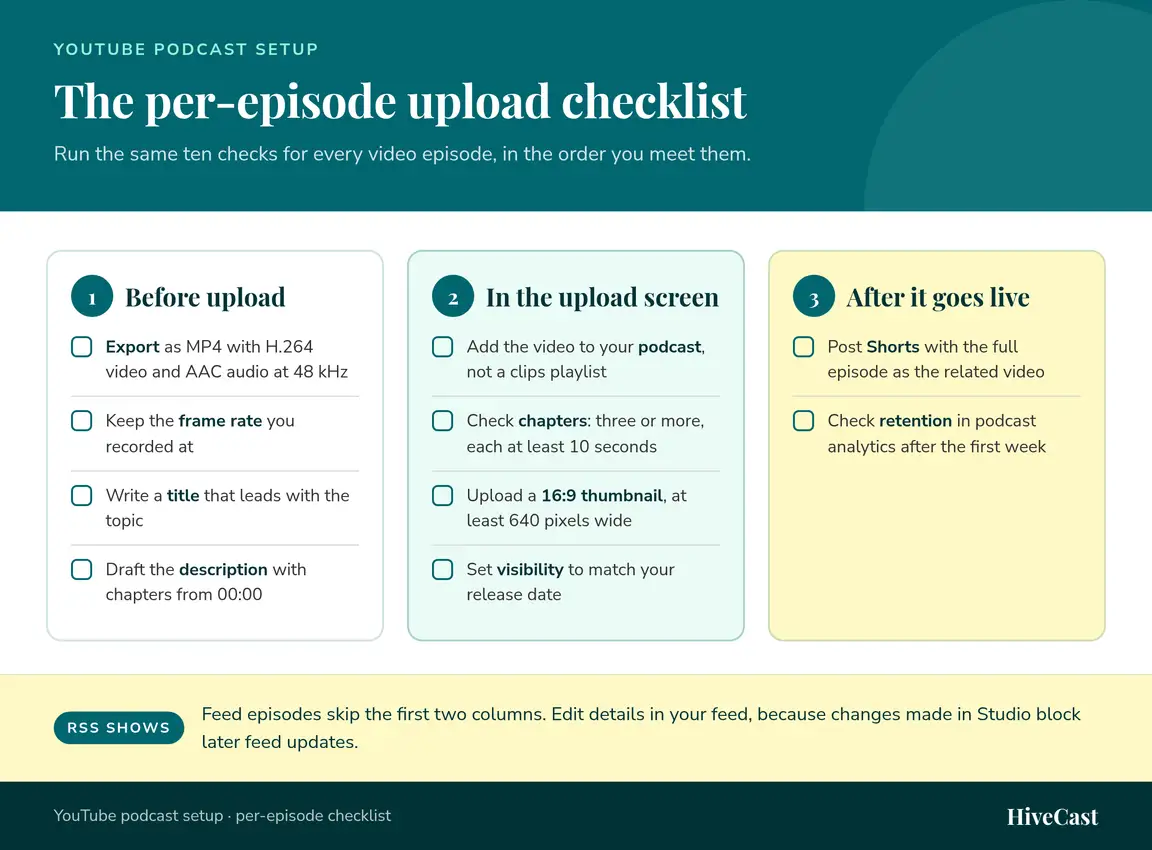
Before upload, the checks cover the export settings from step 5 and the title, description, and chapters from step 6. In the upload screen, they confirm that the episode goes into the podcast rather than a clips playlist, that the chapters meet YouTube’s rules, that the thumbnail is 16:9 and at least 640 pixels wide, and that visibility matches your release date. After the episode goes live, post Shorts that point back to it and check retention in podcast analytics after the first week. RSS episodes skip the first two groups, but keep editing their details in your feed, because a change made in YouTube Studio blocks later feed updates for that episode.
How much a YouTube podcast setup costs
YouTube charges nothing to host a podcast, so the cost is equipment and time. The RSS path adds no production work. The video path adds a video edit, a thumbnail, a description with chapters, and an upload for every episode, which is where most hosts fall behind. There are three ways to handle that work.
| Do it yourself | Freelance video editor | HiveCast video add-on | |
|---|---|---|---|
| Video edit | You | Editor | Our team |
| Thumbnail, title, description, chapters | You | Often you | Our team |
| Upload and scheduling to your channel | You | You | Our team, after you approve |
| Shorts | You | Priced per clip | Enhanced Marketing add-on |
| Who keeps it on schedule | You | You | A dedicated account manager |
Our podcast video editing add-on covers the video path from the edit to the upload: expert video editing, a custom intro and outro, motion graphics, a designed thumbnail for every episode, and the YouTube title, description, and chapters, scheduled to your channel on your cadence. It costs $100 a month on the bi-weekly plan and $200 a month on the weekly plan, on top of the $500 or $875 audio production subscription. The Enhanced Marketing add-on, at the same price, adds three cutdowns per episode posted as YouTube Shorts. Episodes turn around in five business days, there are no long-term contracts, and full plan details are on our pricing page.
Mistakes that hold a YouTube podcast back
These are the problems we see most often when a client brings us a show that is already on YouTube. Each one maps to a step in the setup.
- Mixing clips into the podcast playlist. YouTube wants full episodes only. Put clips and Shorts in a separate playlist.
- A podcast title with extra words. “The Growth Room Podcast Full Episodes” is harder to find than “The Growth Room”. Use the show’s name.
- Brand-only episode titles. “Episode 47” gives YouTube search nothing to match. Lead with the topic.
- Skipping chapters. Long interviews without chapters lose viewers who came for one part of the conversation.
- Editing RSS episodes in YouTube Studio. Each change blocks later feed updates for that episode, so the two versions drift apart.
- Recording against a bright window. Your face turns into a silhouette, and no edit fully fixes it.
- Publishing whenever there is time. A YouTube channel builds an audience on a predictable schedule, so match the audio release cadence.
Getting your show live on YouTube
A YouTube podcast setup comes down to a few decisions made once and a routine repeated every episode. Choose the RSS path or the video path, verify your channel, create the podcast with your show’s real name and a square thumbnail, and then give every episode the same export, title, description, chapters, thumbnail, and Shorts. Read the analytics each quarter and change one thing at a time.
If the video path is right for your show but the weekly work is not something you want to take on, our team handles it for coaches, consultants, authors, and experts every week. Book a free discovery call and we will recommend the setup path and plan that fit your schedule.
Frequently Asked Questions About YouTube Podcast Setup
How much does it cost to set up a podcast on YouTube?
YouTube itself is free, and the RSS path costs nothing beyond the audio production you already pay for. A full video setup adds a camera, a microphone, a light, and the time or budget to edit video every episode. Our video add-on is $100 a month on the bi-weekly plan or $200 a month on the weekly plan, on top of the $500 or $875 production subscription, with no long-term contracts.
Can I put an audio-only podcast on YouTube?
Yes, through the RSS path. YouTube reads your feed and turns each episode into a video of your show art, then uploads new episodes automatically. You cannot upload an MP3 file directly as a podcast episode, because every episode on YouTube has to be a video. RSS delivery needs advanced feature access and a channel located in one of the supported countries, which include the United States.
Do I need to verify my YouTube channel before uploading a podcast?
In most cases, yes. Without verification, uploads are capped at 15 minutes, which is shorter than most episodes. Phone verification unlocks longer uploads, custom thumbnails, and podcast creation. Chapters and RSS delivery need advanced features, which you get through channel history or by verifying with an ID or a short video.
Will my YouTube podcast show up in YouTube Music?
Podcasts you create in YouTube Studio can be eligible for YouTube Music, where most podcast content can be played in the background and downloaded without a premium membership. Shorts made to promote the show do not appear in YouTube Music, and a vague podcast title can be replaced with your channel name in the app, so use your show's real name.
Do I need a studio to record a video podcast?
No. Most of our video clients record in a home office with a webcam or a single mirrorless camera, a separate microphone, and a light in front of them. What matters more than the room is a camera at eye level, quiet surroundings, and remote guests recorded on a platform that captures each person's audio and video locally.
Does HiveCast upload episodes to my YouTube channel?
Yes, with the video add-on. We edit the episode, add your custom intro and outro and motion graphics, design the thumbnail, write the title, description, and chapters, and schedule it to your channel on your cadence. The channel stays yours, and nothing publishes until you approve it. Episodes turn around in five business days.
What happens on a free discovery call?
We ask about your business, the clients you want to reach, and whether you record on camera. Then we recommend a setup path, a publishing cadence, and the plan that fits, including whether the video or Enhanced Marketing add-ons make sense for you. The call is free and there is no obligation.
Want this handled for you?
You record the episode, and HiveCast handles the editing, show notes, graphics, and scheduling. We have produced more than 5,000 episodes, and there are no long-term contracts.
More on Podcast Production
Related Articles

Professional Podcast Editing: 4 Options Before You Hire
Compare 4 professional podcast editing options, from DIY and AI tools to a freelancer or production team, plus 7 questions busy experts should ask first.
How to Make Podcast Clips for YouTube Shorts and Reels
Repurpose your podcast into video: how to find the two or three podcast clips worth cutting from each episode, format them, and post them on a schedule.
Podcast Audio Editing: The 5 Stages of a Professional Pass
Podcast audio editing covers cleanup, levels, content cuts, structure, and a final listen. Here is what a professional pass includes and how to judge one.